The official Meta Ads connector hooks up to Claude in a few minutes, with zero code. Once it is connected you can analyse campaigns, catch anomalies, check your Pixel, benchmark yourself against your industry and even create campaigns and tests straight from the chat. This guide covers how to connect it and what you can do with it, with example prompts for every case.
You want to ask Claude “which ad sets saw their CPA go up this week?” and get an answer with real data from your account, no CSV export. Since April 2026 that no longer means building anything: Meta shipped its own AI connector, an MCP server that Claude, ChatGPT and other tools can use directly.
MCP (Model Context Protocol) is the open standard Anthropic released at the end of 2024 so AI assistants can plug into external data sources and tools. Meta’s connector is an MCP server that turns your requests into Marketing API calls.
The interesting question is not whether you can connect it, but what you can do once it is connected. And the answer is a lot more than it looks, because the connector went from 29 tools at launch to close to 100 in just a few months.
What is the official Meta Ads MCP?
It is an MCP server hosted by Meta, at mcp.facebook.com/ads, that gives an AI authenticated access to your ad accounts. It launched on 29 April 2026.
Meta has kept expanding it since. On 16 July 2026 it added rules to control what the AI can do in each account and opened the server to any developer with a Meta App. In September it added the ability to create Partnership Ads.
What do you need before connecting it?
You only need access to two things:
- Access to the Business Manager of the accounts you are going to connect. To set up the MCP server rules you need full control of the portfolio.
- A Claude account (or any other LLM). Connectors are generally available on every plan, but in Claude’s case the free plan only lets you turn on one MCP. If you want more than one, you have to move up to Pro.
How to connect Meta Ads to Claude, step by step
- In Claude, open Settings > Customize from the sidebar and go to Connectors (in some versions it lives under Settings, Connectors).
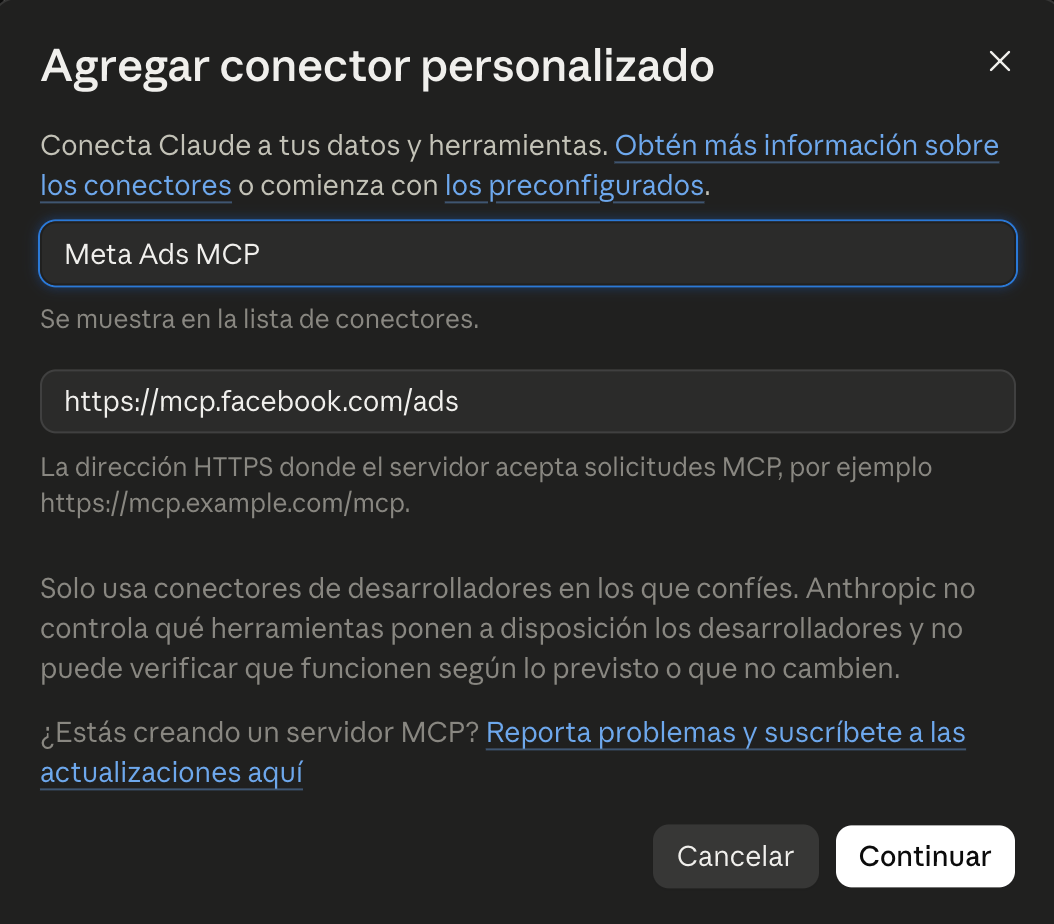
- Click Add > Custom connector, give it a name (for example, Meta Ads MCP) and paste the URL https://mcp.facebook.com/ads.
- Click Continue. The Facebook login opens.
- Choose what to connect. Meta asks about Facebook Pages, Instagram accounts and business portfolios. Tick current ones only and select the ones you need, instead of “all current and future”.
- Run a test: “Summarise my active campaigns from the last 7 days”. If it comes back with data from your account, the connection works.
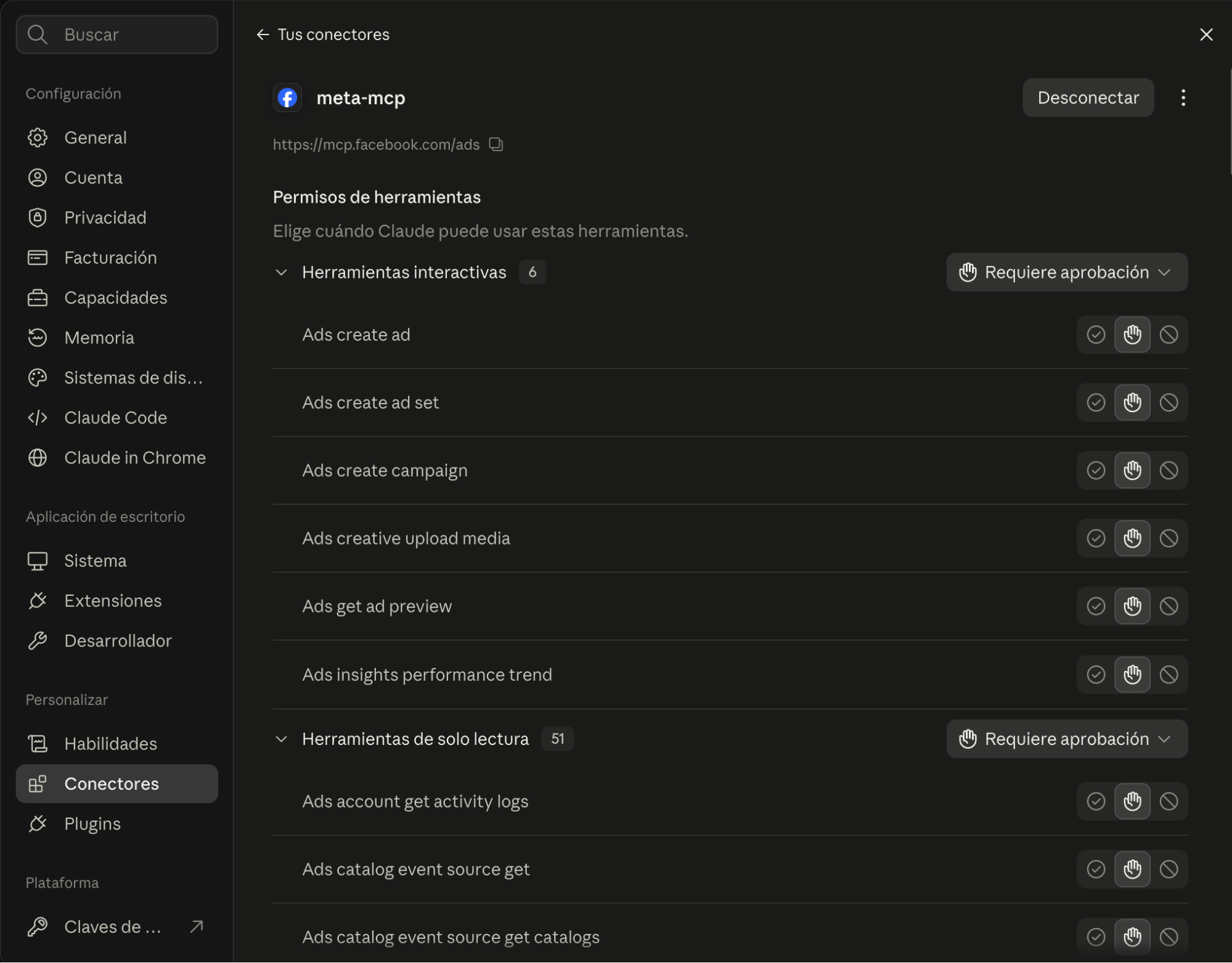
Once you have access, you can open the connector’s configuration inside the connectors tab. You will see a whole list of tasks: “Ads create ad”, “Ads create ad set”… Next to each one there is a highlighted hand, plus a tick and a no-entry sign in a darker shade. This is where you tell Claude which tasks it can run without asking, which ones need your permission and which ones you never want it to run. Here is a screenshot so you can see it (and if you have not done the steps above yet… come on, get moving):
What you can do with the official Meta Ads MCP
Honestly, pretty much everything you can do yourself inside the account, the AI can do from the tool. Below I have laid out four cases where it only reads and four cases where it writes and makes changes.
1. Analyse your campaign performance
The classic. Claude pulls campaigns, ad sets and ads with their metrics, and it can read the account’s performance trend over time. It also has access to account context, like its industry and history, which helps it interpret the numbers.
- “Compare this week’s CPA with last week’s by ad set and tell me what changed.”
- “Which ads took most of the spend this month, and which of those have the worst cost per result?”
Personally, it has helped me a lot to tie performance shifts in my clients’ accounts back to events in the history (new creatives going live, big budget changes, launches…).
2. Catch anomalies on the fly
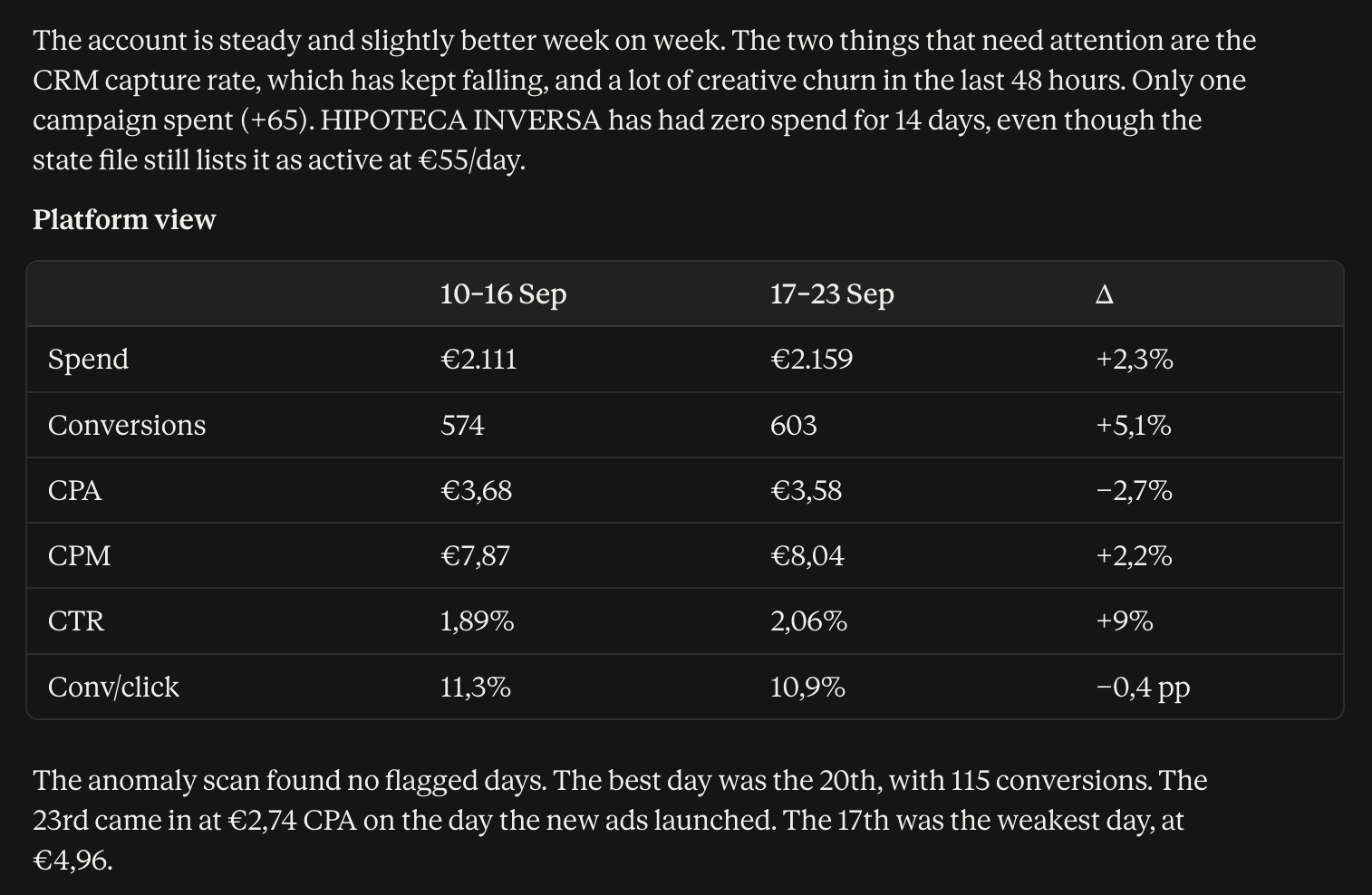
This is where a big chunk of the connector’s value sits, because it is the monitoring work nobody wants to do by hand. It can check for errors blocking delivery, read the anomaly signals Meta detects in the account, pull the opportunity score with its recommendations and go through the change history to see who touched what.
- “Check whether any errors are blocking delivery on my active campaigns.”
- “Are there any anomaly signals in the last 7 days? Cross-check the answer with the account’s change history.”
IMPORTANT: this is pretty useless if it only happens when you ask. Forget one day and… RIP. AI tools let you schedule prompts and run them whenever you want. I, for example, have an anomaly detector for each client that runs every 4 hours and pings me on Slack if something happens. Mostly it checks for restrictions, limited ads and unusual budget spend.
3. Benchmark yourself against the market and the competition
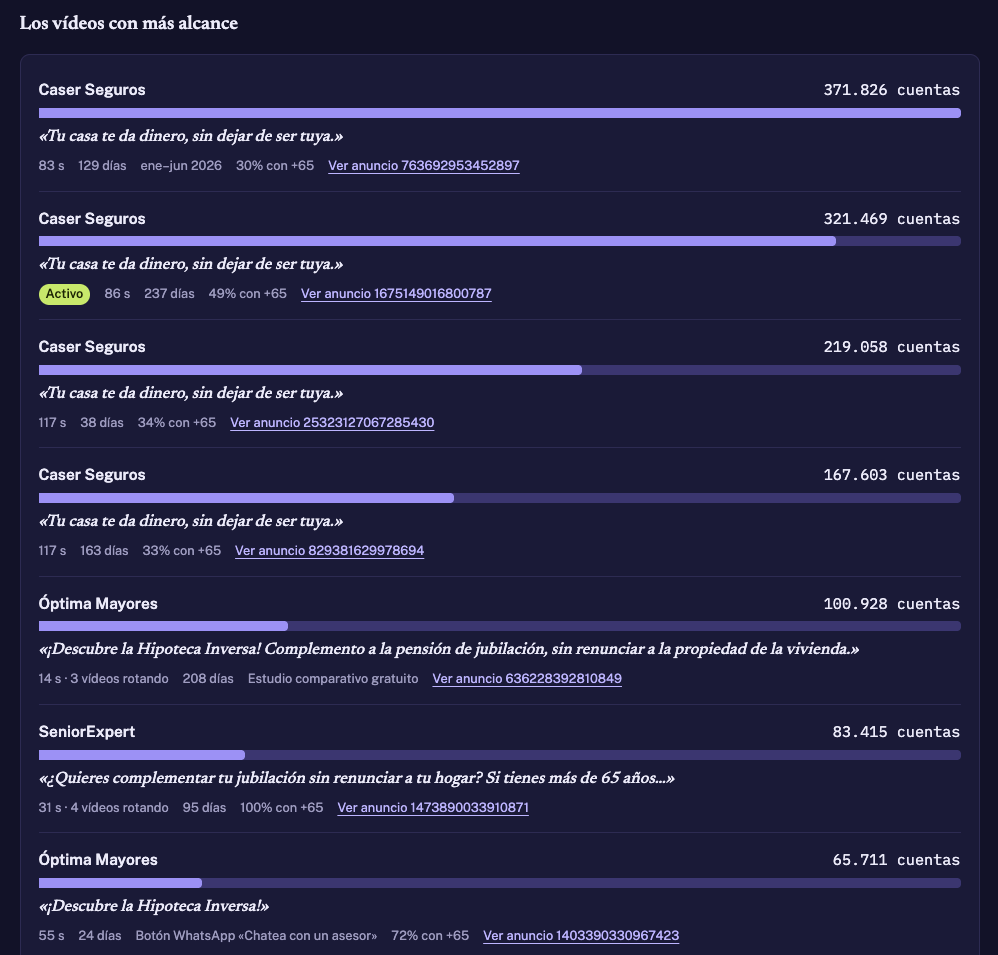
It has access to the Facebook Ad Library!!! Yes, you read that right. Something that used to take me hours to put together (analysing competitors, finding their brands in the Ad Library, going through the ads with the most volume and the longest run time, working out what they are promoting…) now takes half an hour, and Claude does it while I get on with my own stuff. The connector gives access to Meta’s Ad Library, so you can see what the competition is running without leaving Claude.
- “Compare my account’s performance with my industry benchmark and tell me which metrics I am below on.”
- “Search the Ad Library for XXX’s active ads and summarise the angles and formats they use.”
Literally, back when I worked at an agency, this was the job I would hand to a junior. It is a bit sad that people coming into the industry now have it harder, because there are hardly any tasks left that a junior can take on and the AI does not already do… But that is a conversation for another day, let’s keep going!
4. Audit the Pixel and the Conversions API
Three kinds of tools cover measurement: dataset configuration, signal quality (including event match quality) and event volume. This usually explains a good share of the problems accounts run into, so having it covered is perfect. On top of that, the connector can create and edit Pixel events and parameters, which is best saved for when you know exactly what you want to change.
- “Analyse the health of the Pixel and the event match quality, and tell me what looks wrong.”
- “Compare browser and server event volume over the last week. Has any event dropped off?”
If you have Claude using this and you add Cowork so it can get into the company’s Google Tag Manager… Congratulations! Your web analytics for Meta Ads is now covered end to end.
5. Create and edit campaigns, ad sets and ads
Claude can create campaigns, ad sets, creatives and ads, generate an ad preview before switching it on, boost Instagram posts and, since September, create Partnership Ads. It CANNOT upload videos and images from your computer to use in ads: you have to upload those yourself. Claude can only use them if the content already lives at a URL (Drive, your own server, uploaded as media in Meta…). It can also edit budgets, targeting, creative and status on anything that already exists.
Everything it creates is born paused, but you can switch it on from inside Claude. Edits, on the other hand, apply instantly, so a budget change or a pause hits whatever is already running.
- “Create a lead generation campaign with this daily budget and two ad sets, one per audience. Leave everything paused and show me the ad previews.”
- “Pause the ads in ad set X with a CPA above €40 over the last 7 days.”
6. Manage custom audiences
It can list your custom audiences, see which ad sets use them, create new audiences and update existing ones, including the user list of a customer audience.
- “Which custom audiences are not used in any active ad set?”
- “Create an audience of people who engaged with my Instagram account in the last 90 days.”
7. Launch A/B and lift tests
This is one of the least known areas. The connector can check whether a campaign is eligible for an experiment, create A/B tests and conversion lift tests, and pull their results. Setting up a test from the chat, with the hypothesis written in plain language, really lowers the bar for testing with some method.
- “Check whether my two lead gen campaigns are eligible for an A/B test and suggest how to set it up.”
- “List the active tests in the account and summarise which variant is winning.”
I have not used this feature yet, so I cannot say much here, but it does look interesting for accounts that are scaling in volume.
8. Work with catalogs and dynamic ads
For ecommerce, the connector handles product catalogs end to end: create catalogs, feeds and product sets, add and edit products, check catalog diagnostics and dynamic ads health, and connect event sources.
- “Check my catalog diagnostics and tell me which errors are keeping products out of the ads.”
- “Create a product set with the items in the sale category.”
I have not used this one either, since I mostly work with lead generation businesses. That said, colleagues who have tried it say that for now it leaves a lot to be desired on feed quality and structure.
| Area | What you can do | Type |
|---|---|---|
| Performance | Metrics by campaign, ad set and ad, trends and account context | Read |
| Problems | Delivery errors, anomaly signals, opportunity score, change history | Read |
| Market | Auction and industry benchmarks, Ad Library | Read |
| Measurement | Dataset health, signal quality, event volume | Read (plus editing Pixel events) |
| Campaigns | Create campaigns, ad sets, creatives and ads; edit budget, targeting and status | Write |
| Audiences | Create, update and delete custom audiences | Write |
| Experiments | A/B and lift tests: eligibility, setup and results | Write |
| Catalogs | Catalogs, feeds, products and dynamic ads health | Write |
Where it falls short
- It only covers Meta. Obvious, sure, but still frustrating. To cross data with Google Ads, GA4 or your CRM you need other connections in the same conversation. That is why I built my Paid Media MCP, which includes the architecture to add Google Ads and TikTok. In this article I explain how to connect Google Ads to Claude.
- Lots of tools eat up context. With close to 100 tools loaded, switching off the ones you do not use helps Claude pick better. Also keep in mind that, since the MCP only works through the AI in natural language, it burns through a lot of tokens. If you want to optimise, turn some of these analyses into scripts that run on a schedule without needing an LLM.
- It is still in beta. Tools and defaults change every few weeks.
- It does not replace judgement. Claude reads data really well, but a good recommendation depends on the business context you give it. I normally use it to pull the numbers for me; I do not want it doing the analysis.
Before you let it write: how to limit what it can do
Areas 5 to 8 change things in your account, and by default they are allowed. There are two places to rein them in, and you should use both.
In Claude, tool by tool. As I mentioned earlier, in the connector settings each tool can be set to always allow, ask for approval or block. To start: reads allowed, creation and editing with approval, deletion blocked. With approval on, Claude shows you the call and its arguments before running it.
In Business Settings, account by account. In Business Settings, Integrations, Ads MCP Server you see every ad account and catalog exposed to the connector. Under Details you can switch seven actions on or off: edit or set any budget, create campaigns, create ad sets, create ads, edit targeting, edit creative and edit status. According to Jon Loomer’s review in August, all seven came switched on by default, so it is worth checking on day one.
| Use case | Connector in Claude | Rules in Business Settings |
|---|---|---|
| Reporting and analysis only | Read allowed, write and delete blocked | All seven actions off |
| Executing changes you already decided on | Read allowed, write with approval, delete blocked | Only the actions you will actually use |
| Your own account, testing | Write with approval | Creation on, budget off until you trust it |
A note for agencies: when you connect, you authorise whole portfolios, not individual accounts, and the “read only” you get that way comes from configuration.
Day to day, this is how I have my AI setup for Meta put together:
- An API connection with a custom MCP where I hook the CRM up to the ad platforms. That pulls data down to a server and dumps it all into a custom report. I give a quick overview of how it works in this article.
- The custom MCP and the Meta MCP both connected to Claude. The AI reads the performance data from the report alongside the CRM leads and the platform costs, then goes into Meta, pulls the ads that perform best in the CRM and writes creative briefs with variants of copy, layouts and concepts.
- With the same connections, it tells me on Slack every day what is working and what is not, along with proposed changes (pause creative X or Y, scale a few others to Winners, budget reallocations…).
- I give the ok to everything or just to some of the actions, and it runs them over the course of the day.
Key takeaways
- The official Meta Ads MCP lives at mcp.facebook.com/ads, is free in beta and connects to Claude in minutes as a custom connector.
- Pretty much everything you do by hand in the account, Claude can do: four read areas (performance, anomalies, market and measurement) and four write areas (campaigns, audiences, experiments and catalogs).
- What pays off from day one: tying performance changes to the account history, analysing competitors in the Ad Library and auditing the Pixel.
- Anomaly detection is only useful if it is automatic. Schedule it to run on its own and ping you on Slack.
- It does not upload images or videos from your computer: the content has to already be at a URL or in Meta’s library.
- It burns a lot of tokens. Anything you repeat often, turn into a script that does not need an LLM.
- Before you let it write, check the permissions in Claude and the seven actions in Business Settings, which came switched on by default.
What to do now
- Connect mcp.facebook.com/ads in Claude, authorising only the current assets you need, and decide in the connector settings which tools are allowed, which need approval and which stay blocked.
- Start with reads: ask it to tie last week’s performance changes to the account history.
- Run your first competitor analysis in the Ad Library on two or three competitors.
- Schedule an anomaly detector per account that warns you about restrictions, limited ads or unusual spend.
- Once you trust how it reads the account, open up writes with approval and start with something low risk, like pausing an ad.
Conclusion
The official connector has removed the hard part of connecting Meta Ads to an AI: no more App, no token, no code. And in exchange you get pretty much everything you would do inside the account, but from a conversation.
Where I get the most out of it is not letting it run the campaigns, but in three things: watching the accounts for me with scheduled alerts, doing the heavy lifting on competitor research in the Ad Library, and pulling the numbers so I can focus on deciding. It does execute the changes, yes, but only after I give the ok.
And if you want to go one step further, the leap is connecting it to the rest of your stack: CRM, Google Ads, Slack. That is when it stops being a chat with your data and becomes a system that tells you every day what to change.
My take: AI is not going to run your campaigns better than you, but it does put in front of you in minutes what used to take you a whole morning to find. The judgement is still yours.
What happens if we work together
Connecting Meta’s MCP takes five minutes. What makes the difference is what you build on top: alerts that watch the accounts on their own, competitor analysis that repeats without you having to remember it, and permissions that don’t give you a budget scare.
If you want to set it up on your account or your clients’ accounts, the first thing I do is not give the AI write access. I review which portfolios you are connecting, what you need to watch every day and who has to approve changes. With that on the table I tell you what can be automated right away and what is better left read-only.
Tell me about your case